
Antsomi CDP 365 Manual for Beginners | How to Import Customer Data from BigQuery via Dataflow
Published: Apr 6, 2026|4 min read|

Introduction
Welcome to Antsomi CDP 365! To unlock the full potential of Antsomi CDP 365 and execute various personalized marketing activities, the essential first step is importing your customer data. This process is the foundation for consolidating fragmented information into a unified customer view.
Once your data is successfully integrated, you can leverage AI-driven insights and orchestration tools to deliver highly relevant experiences across all touchpoints. This manual provides a step-by-step guide to importing your data and transforming it into actionable marketing intelligence.
This manual explains how to automatically import customer data from Google BigQuery into Antsomi CDP 365. To achieve this, you will need to configure a BigQuery Data Source and set up a Dataflow to push the data into a Business Object.
Step 1: Create a BigQuery Data Source
Data Sources are used to generate the input data from BigQuery for your Dataflow.
-
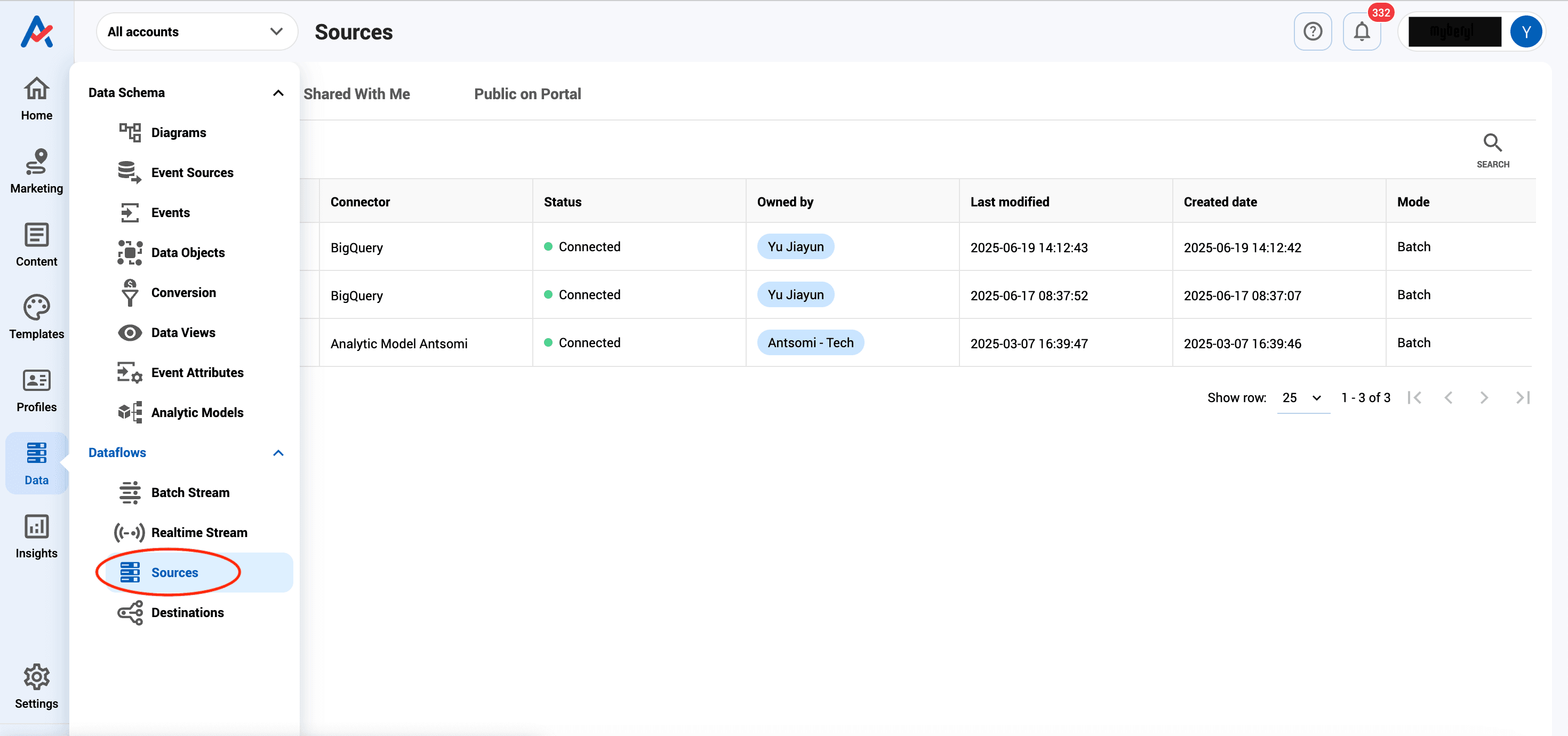
1️⃣Navigate to the "Data" module. Then select "Sources" under "Dataflows".
-
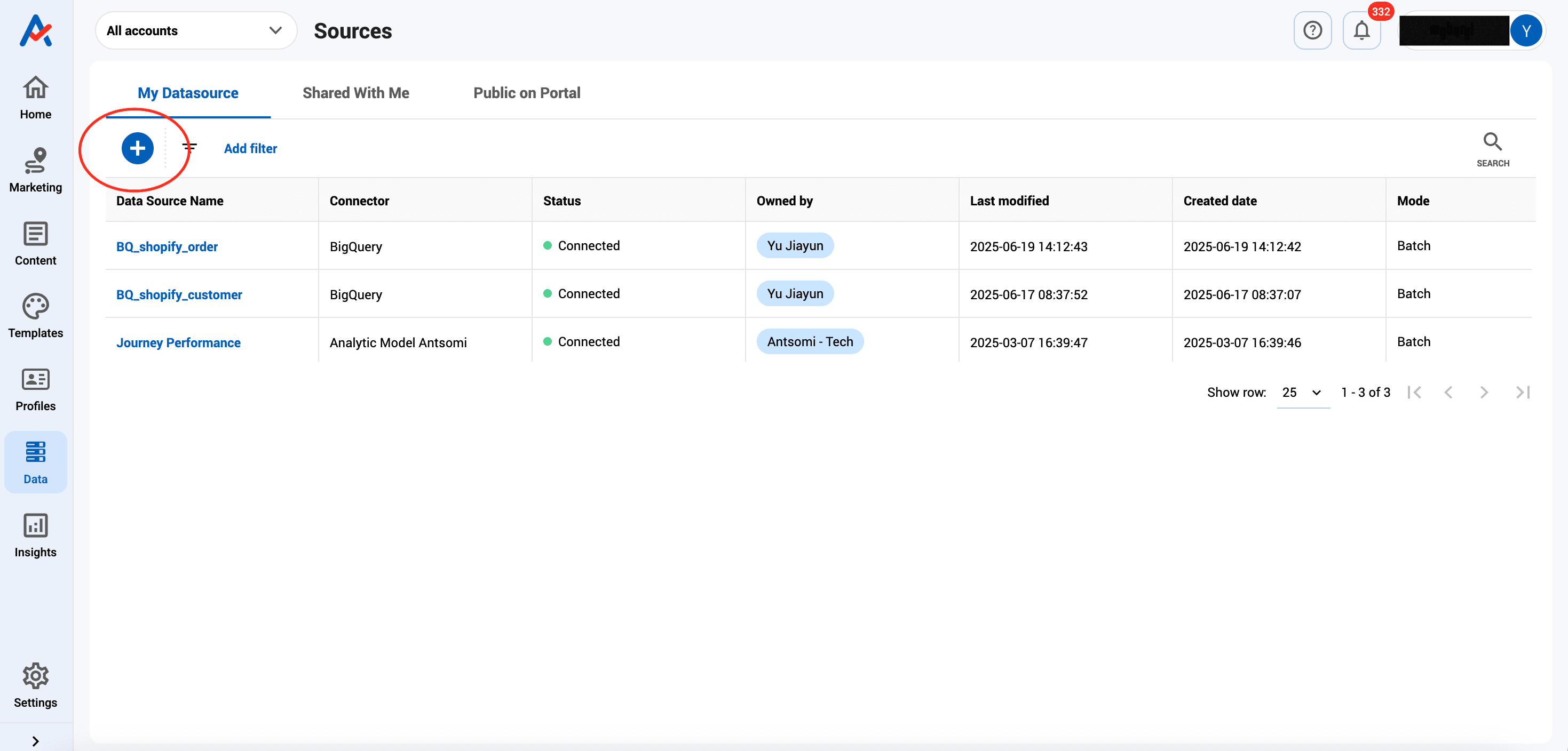
2️⃣Click the + icon to set up a new Data Source.
-
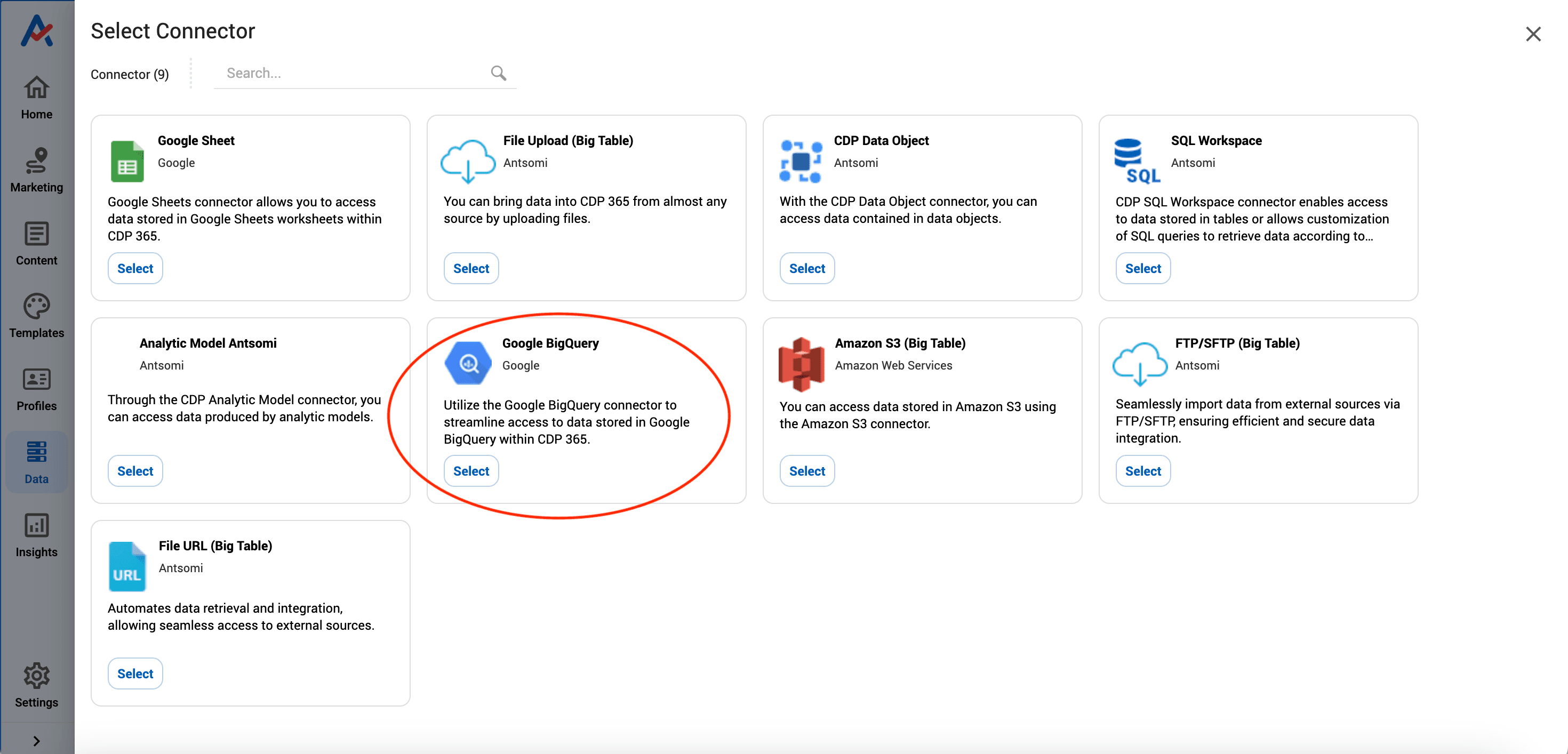
3️⃣Select the Google BigQuery connector.
-
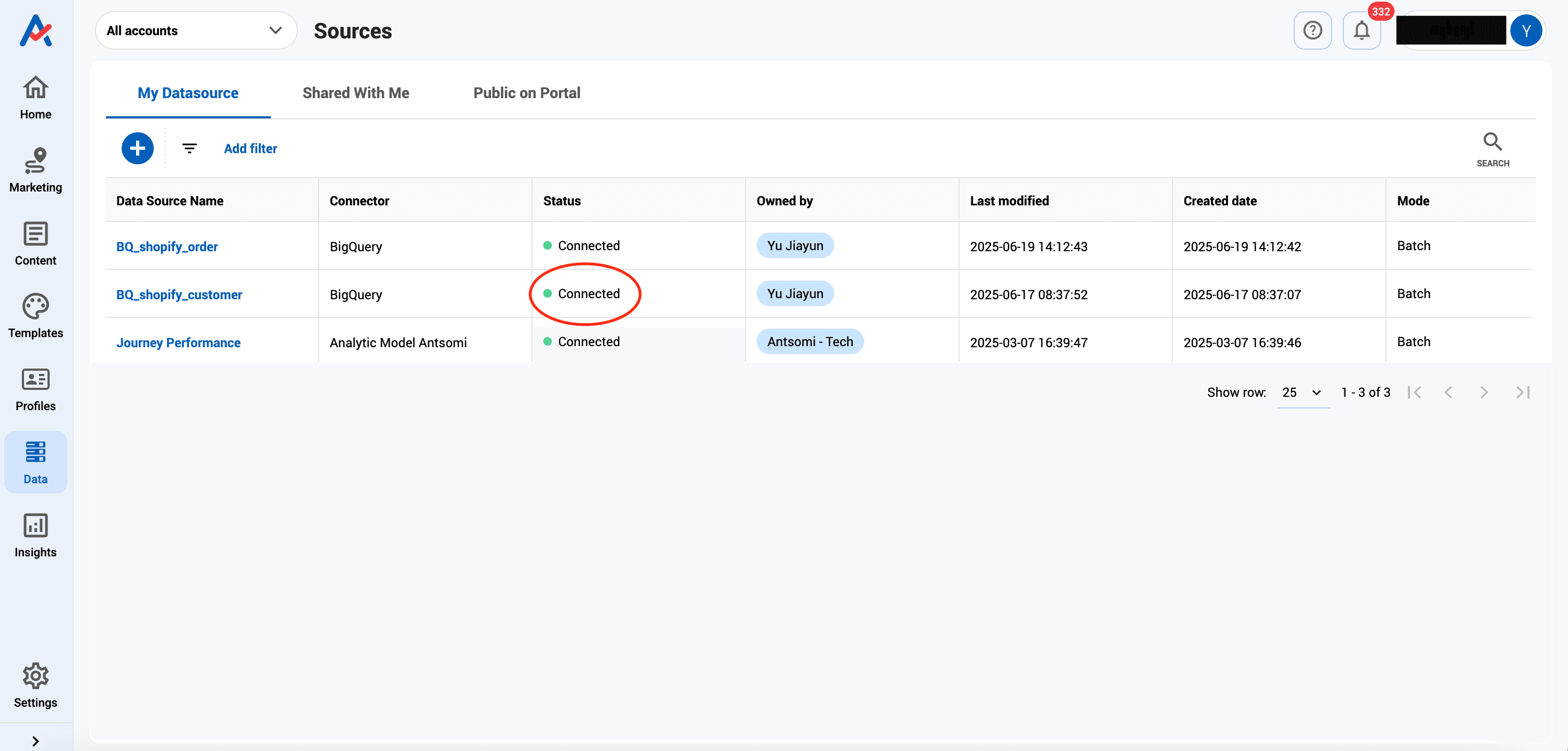
4️⃣Verify the connection. Once successfully configured, the status will display as "Connected", meaning it is ready to use.
Step 2: Create a Dataflow
A Dataflow is a pre-set workflow that automatically performs actions when conditions are met.
-
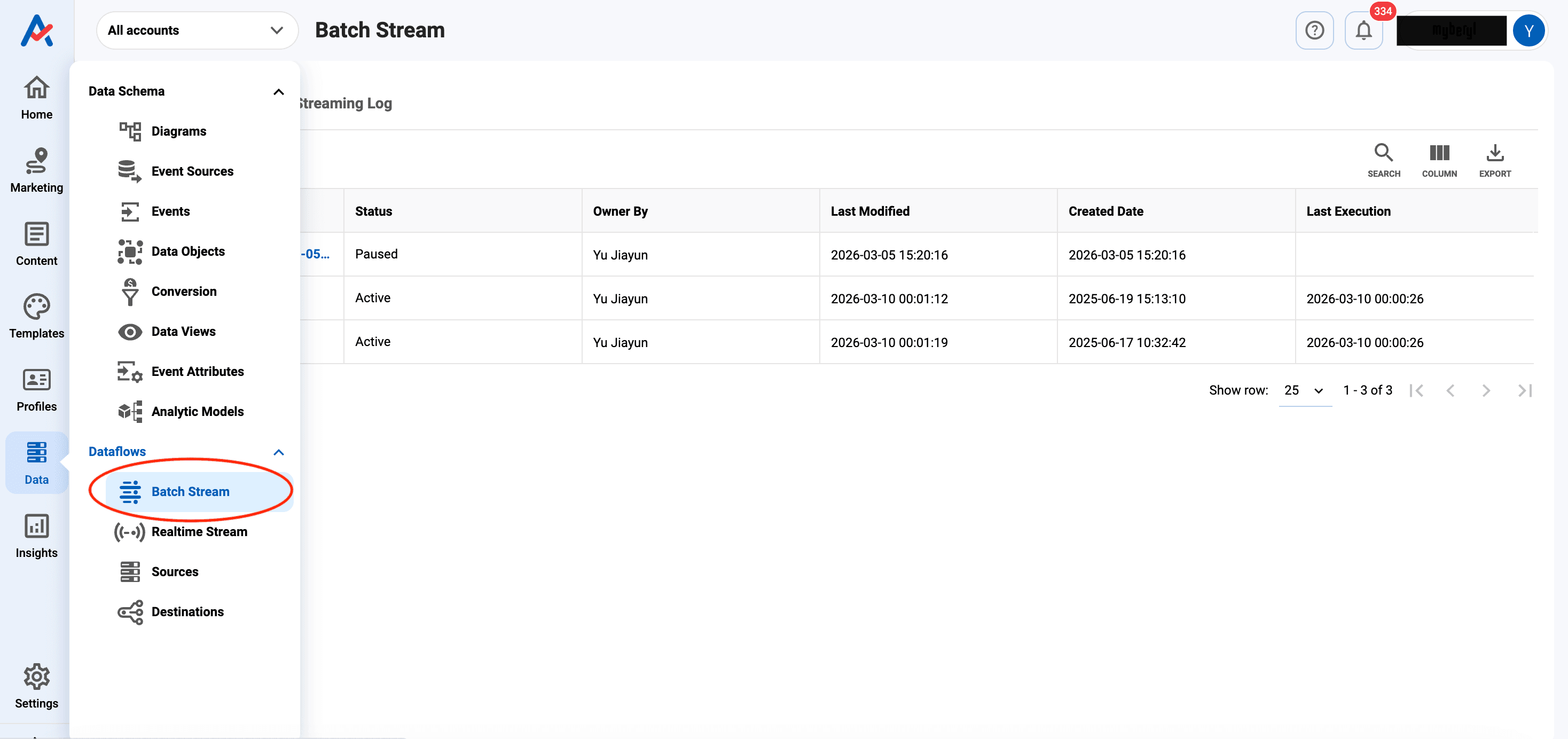
1️⃣Navigate to the "Data" module. Then select "Batch Stream" under "Dataflows".
-
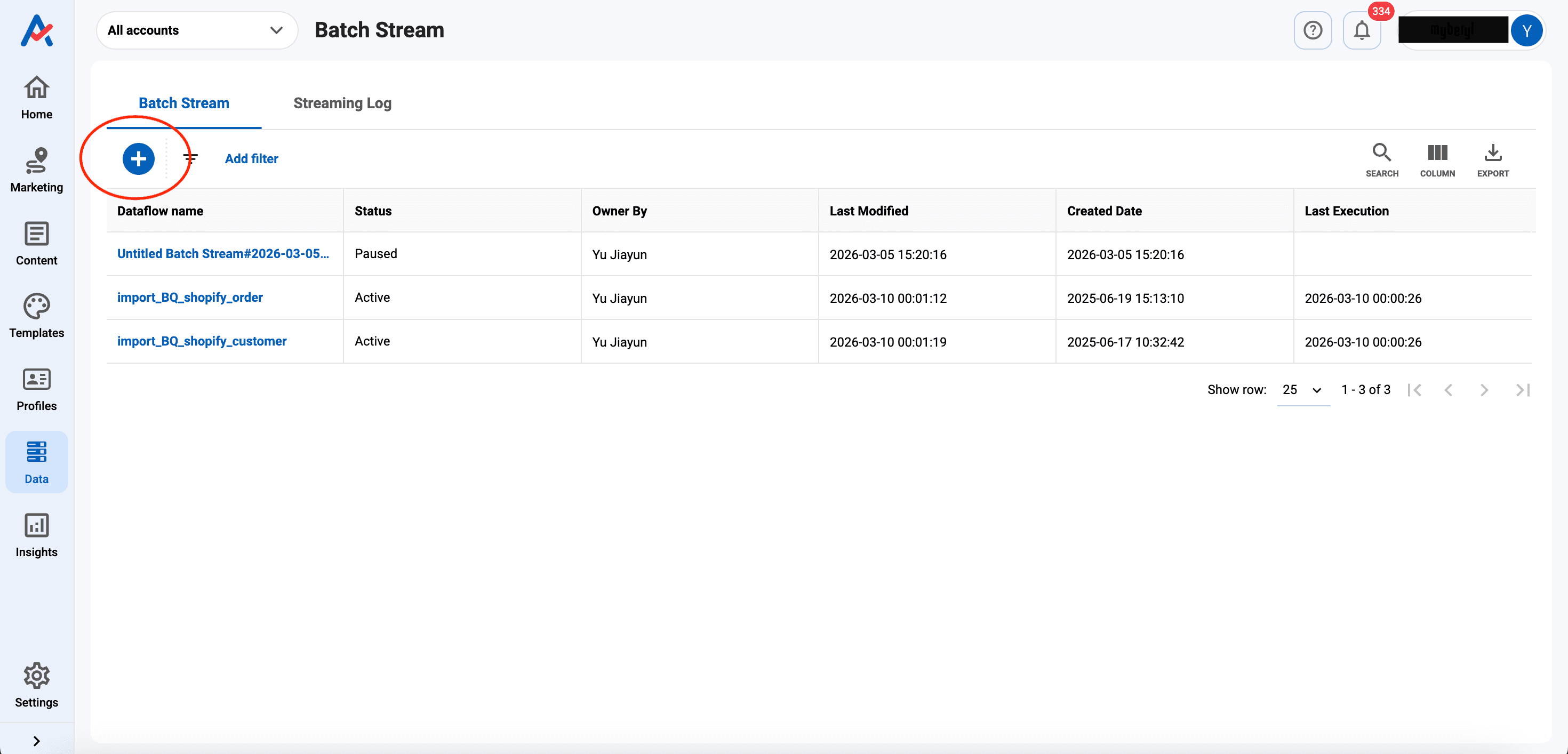
2️⃣Click the + button to start building a new Dataflow.
-
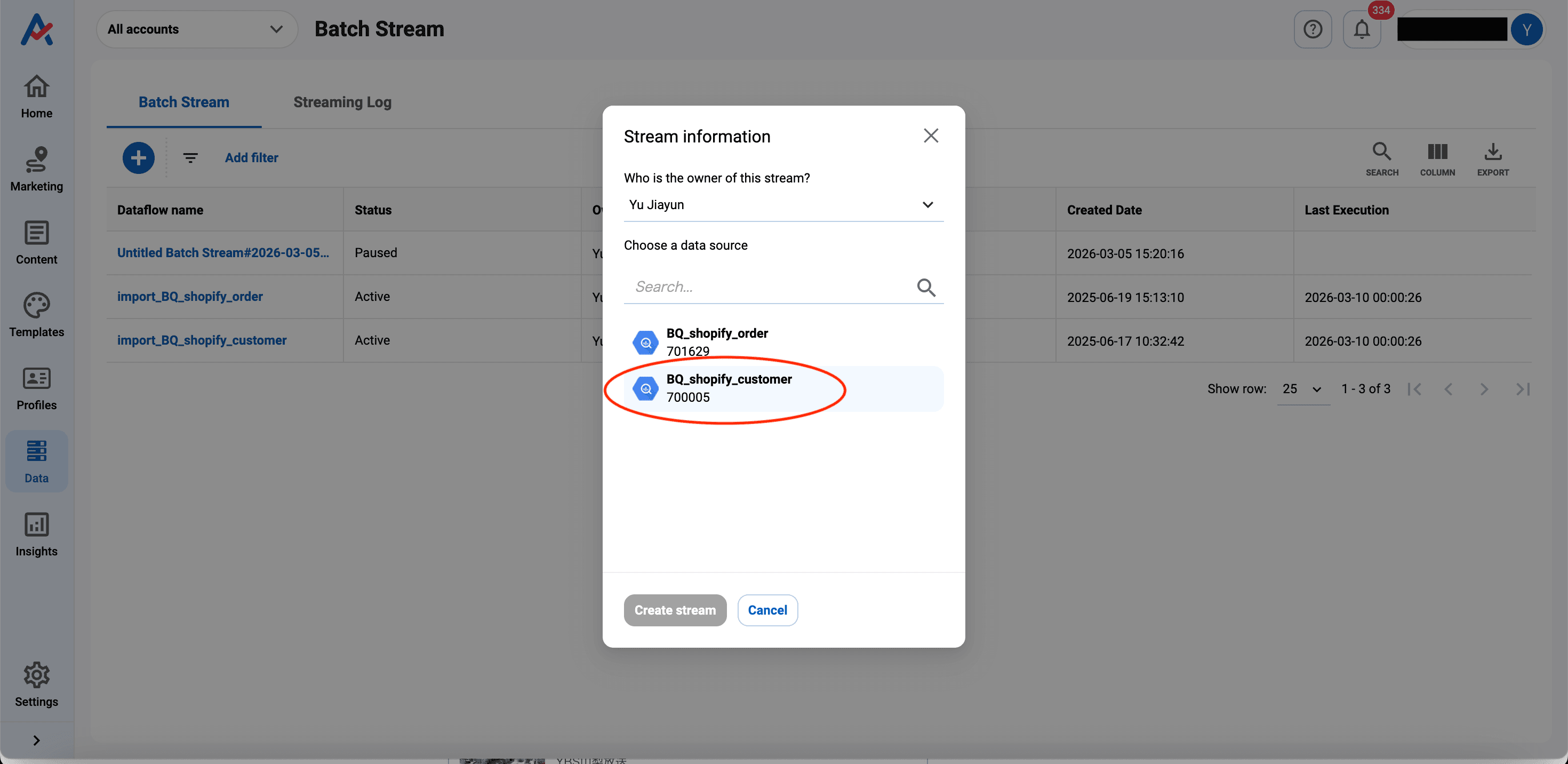
3️⃣Set your newly created BigQuery Data Source as the input.
-
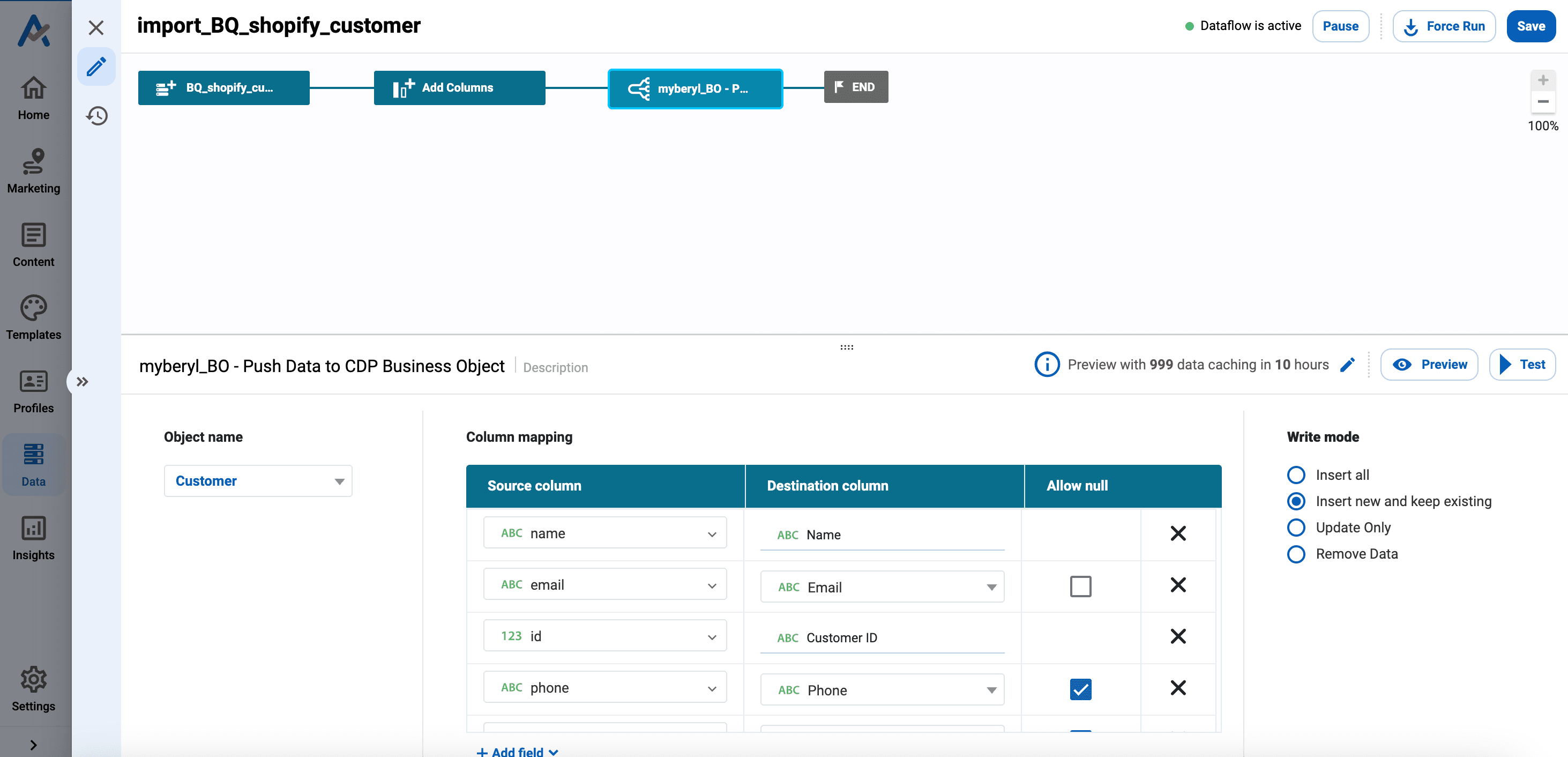
4️⃣Configure the workflow to push the customer data stored in Google BigQuery into a Business Object within Antsomi CDP 365 as the destination.
Step 3: Activate and Monitor the Dataflow
-
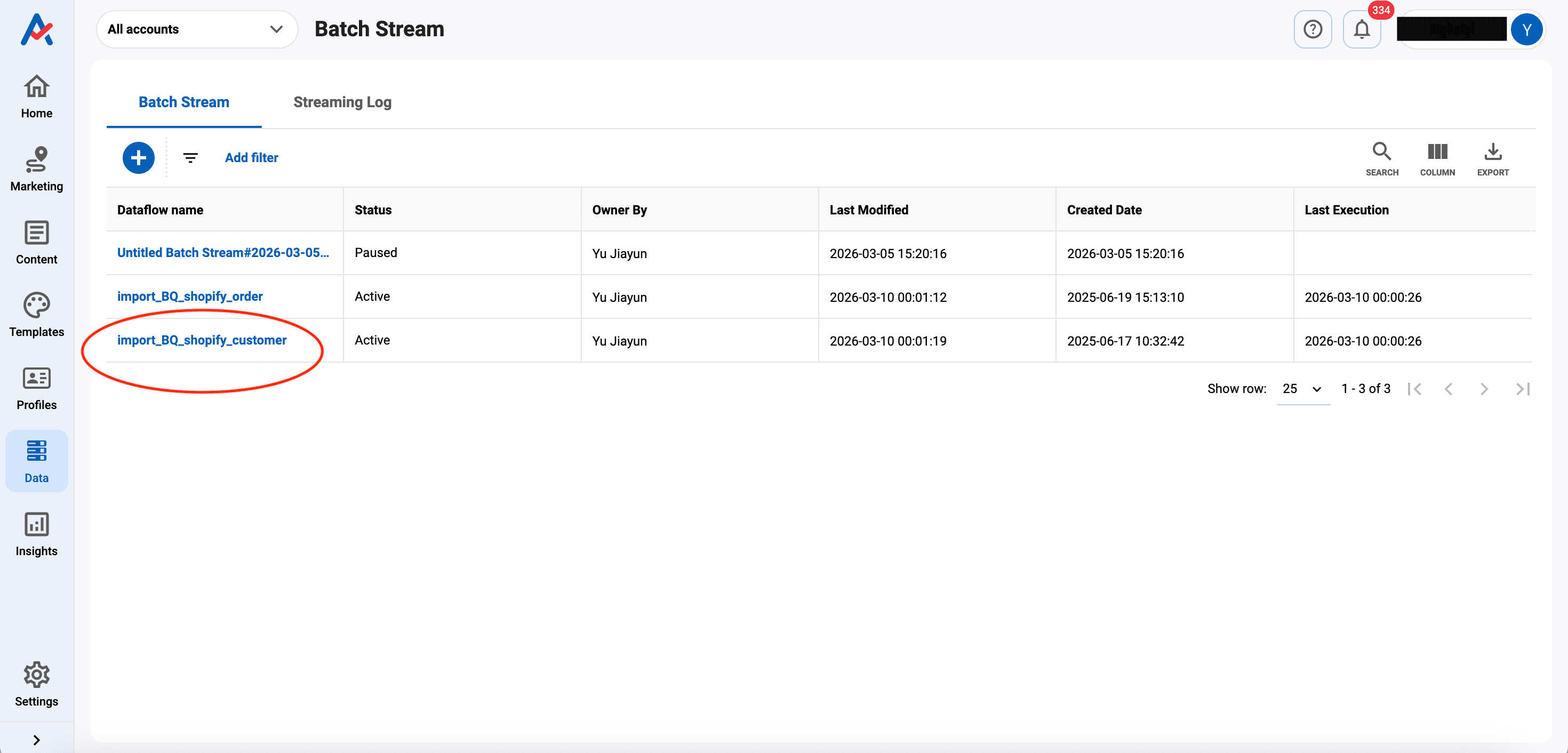
1️⃣Click your new Dataflow's name on the Batch Stream screen.
-
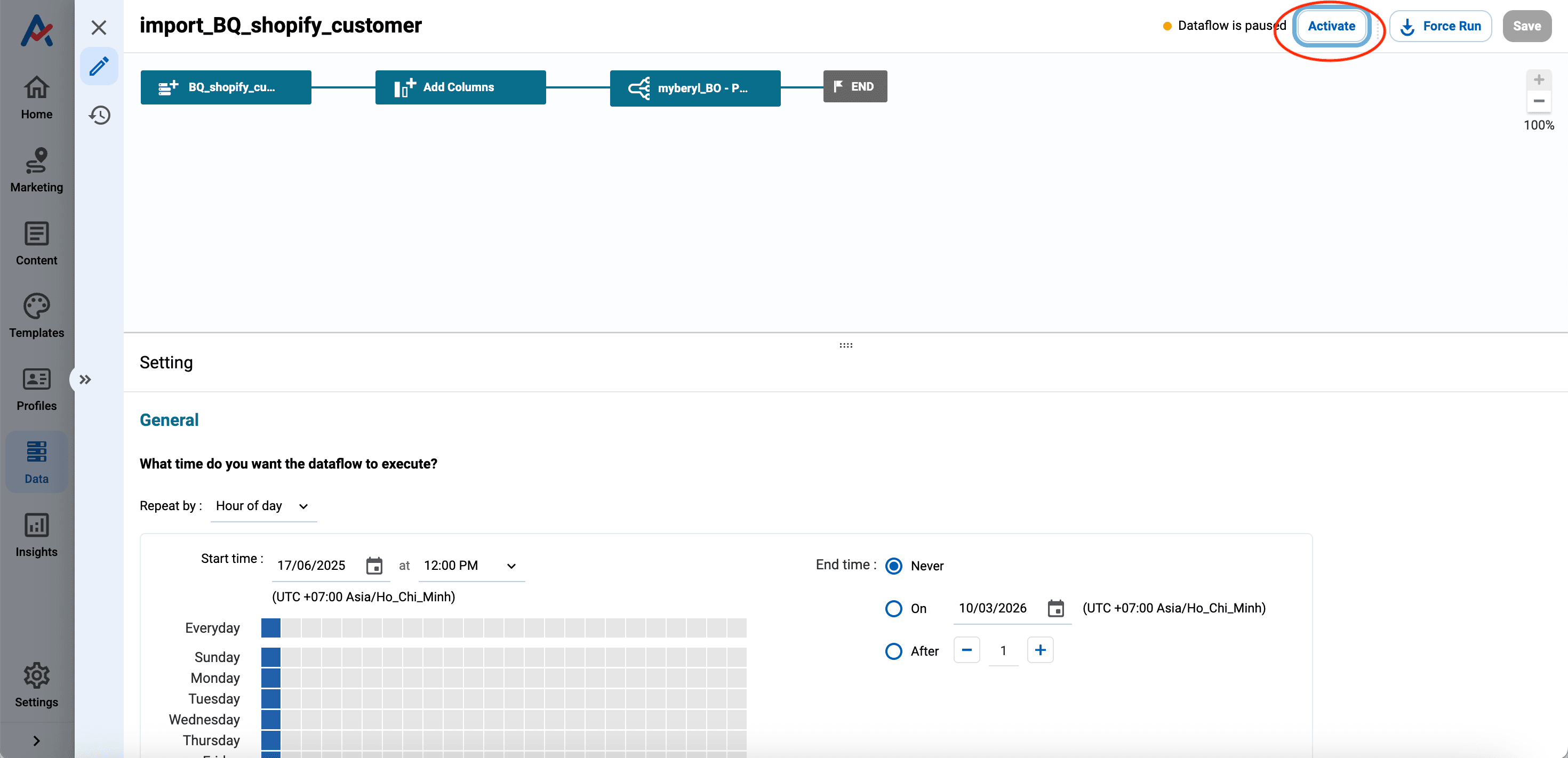
2️⃣Click Activate to change the status from Paused to Active.
-
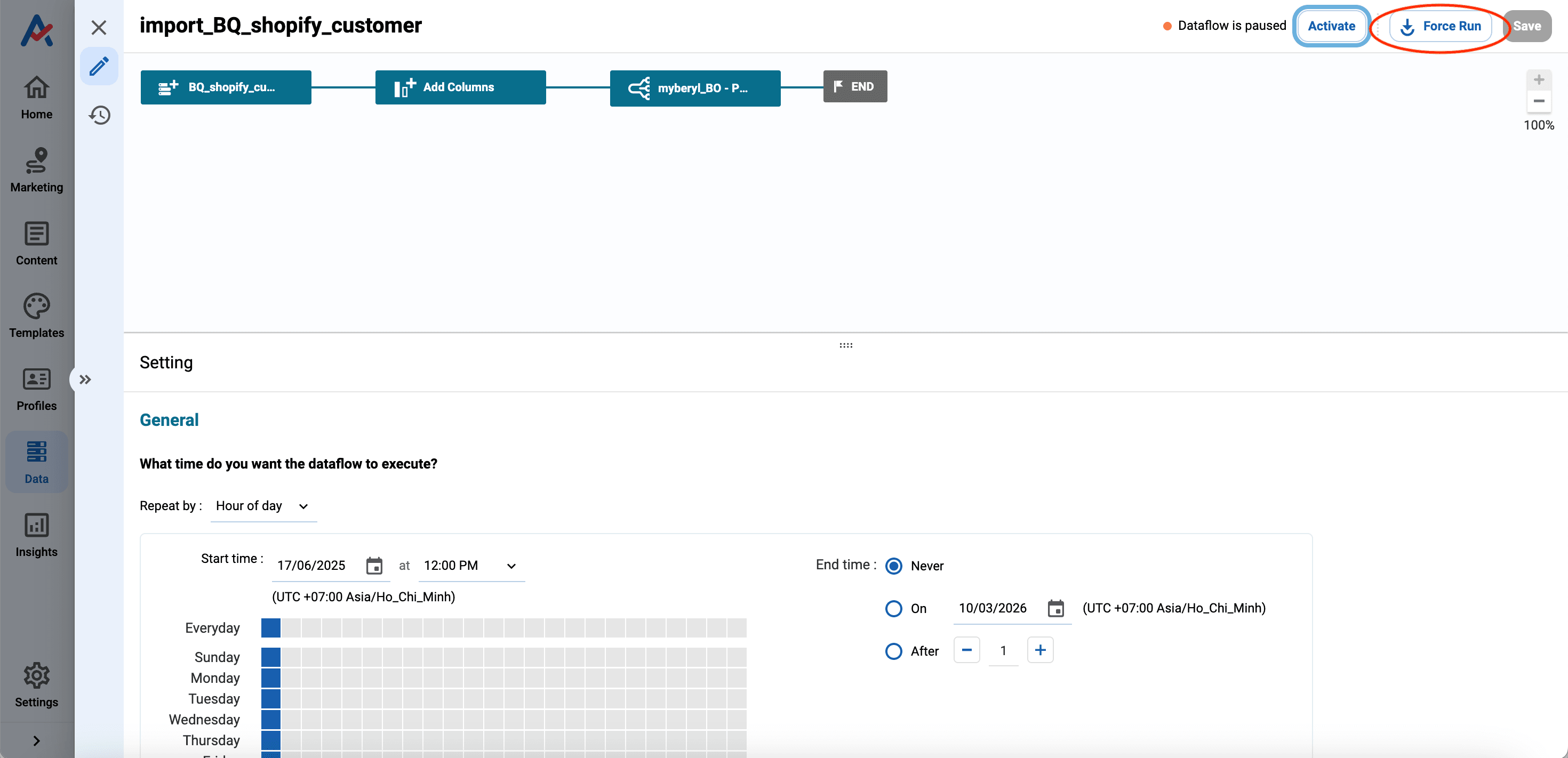
3️⃣If you want to ingest the data immediately, select Force run to execute the Dataflow on demand.
-
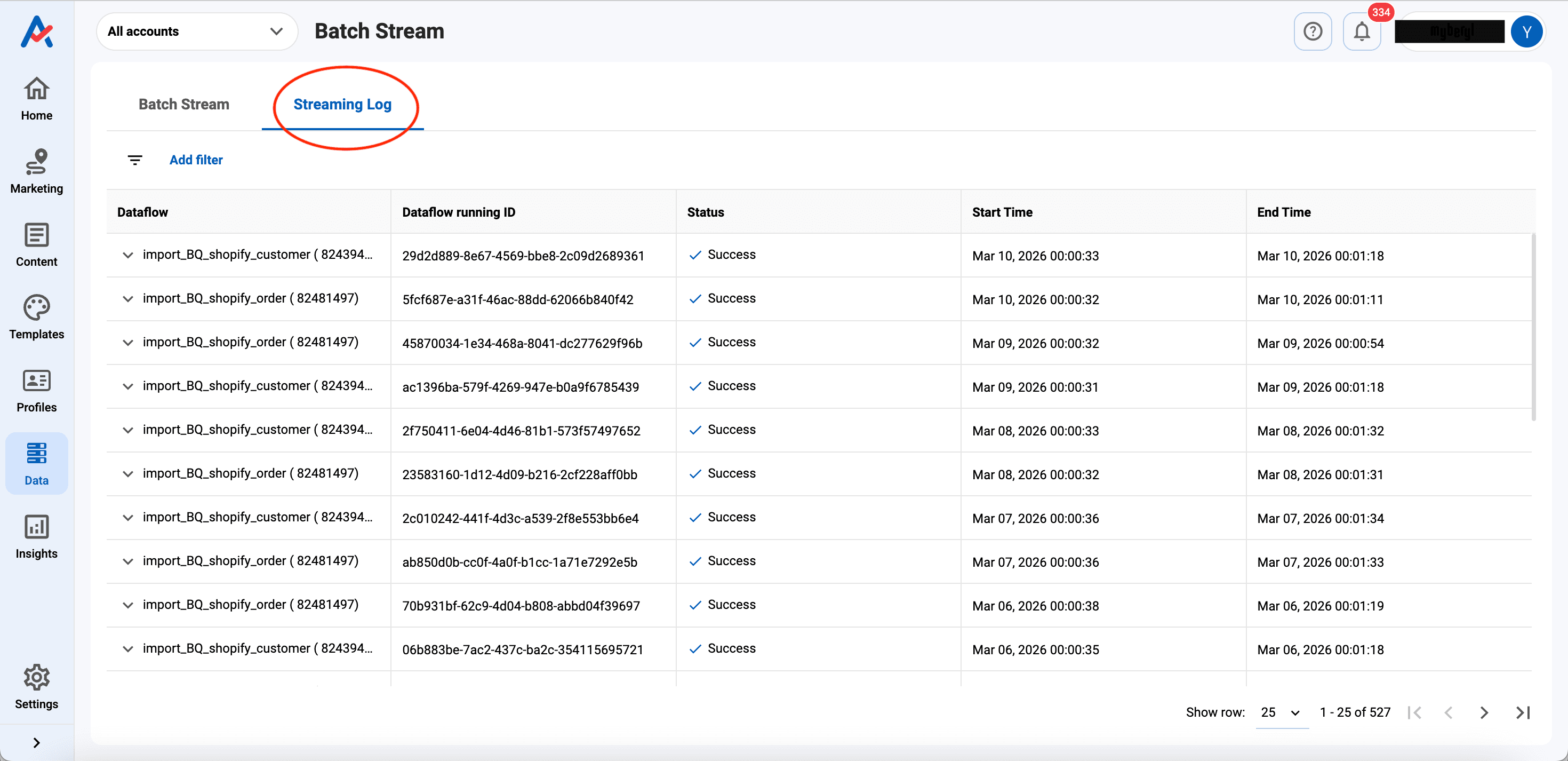
4️⃣To track the process, click on the Dataflow name to access Streaming logs, which show the run history and details for each node.
Conclusion
By completing these steps, your customer data stored in BigQuery is now integrated and ready to power automated, personalized marketing campaigns within Antsomi CDP 365. You can now leverage this unified data to deliver highly relevant customer experiences across all channels.
Have Questions or Want to Learn More?
Contact us for more information about H+ CDP and how it can help your business.
Email us at: antsomi-contact@hakuhodody-one.co.jp
Or, fill out the form below and we'll get back to you shortly.