🎯 Objective
To automatically send a reminder email to users who trigger a "Cart Abandonment" event. The email content must dynamically display the image, name, and details of the products they left in their cart by leveraging Event Attributes captured by the CDP.
📋 Prerequisites
🔗 Data Integration: Your e-commerce data sources must be integrated with Antsomi CDP 365 (Data Hub).
👣 Event Tracking: User interactions like "Add to Cart" and "Purchase" must be tracked as Events in the CDP.
📝 Event Attributes: These events must include Event Attributes containing the specific product details necessary for personalization, such as the Image URL, product name, and price.
🛠️ Step-by-Step Guide: Creating the Dynamic Email Template
Step 1: Access the Email Template module
1️⃣ Navigate to the "Templates" module. Then select "Email”.
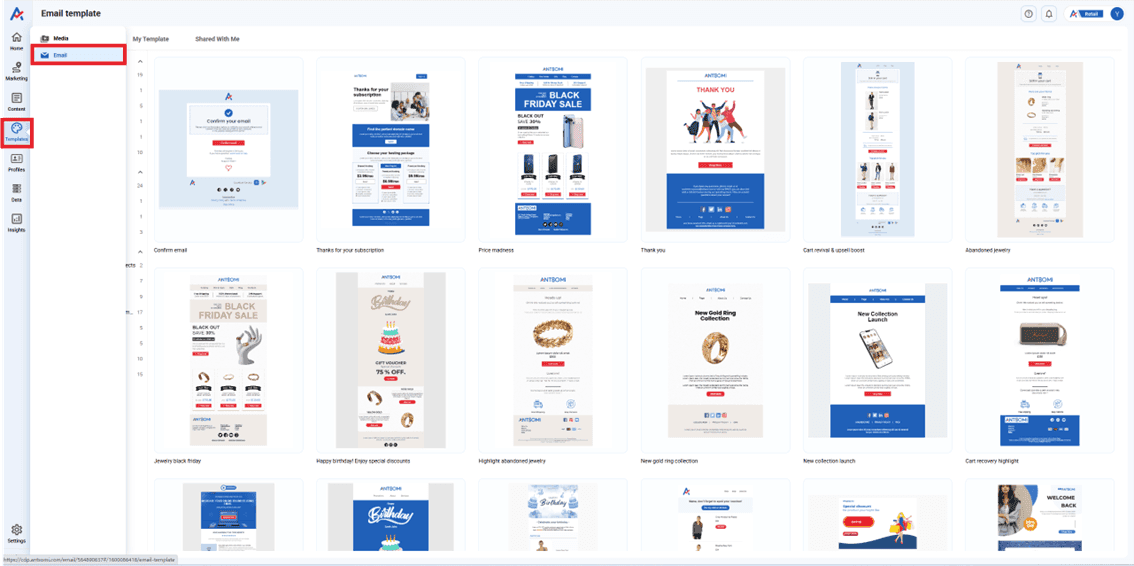
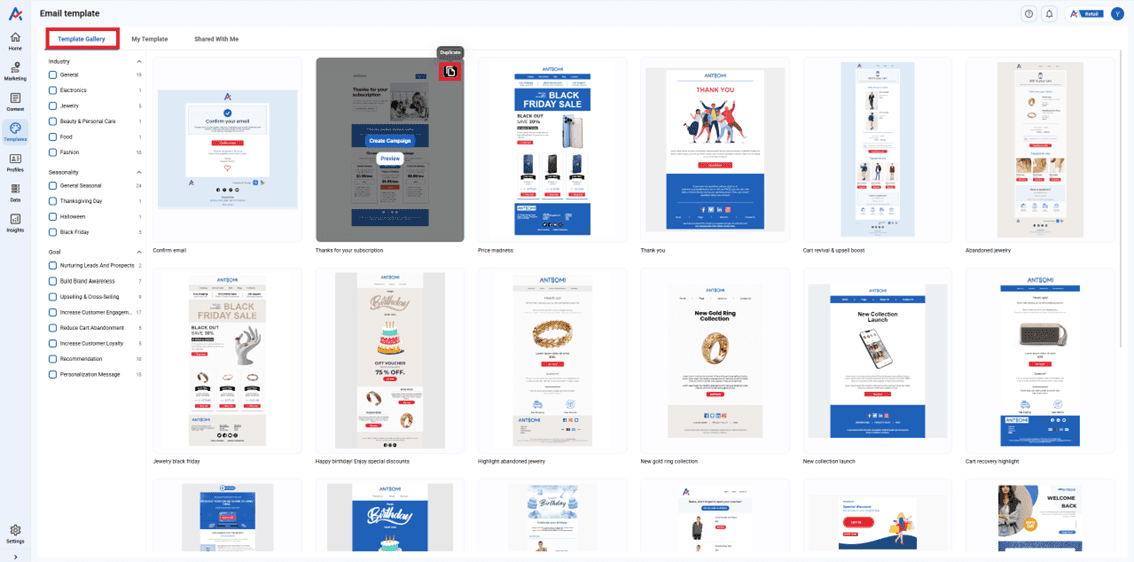
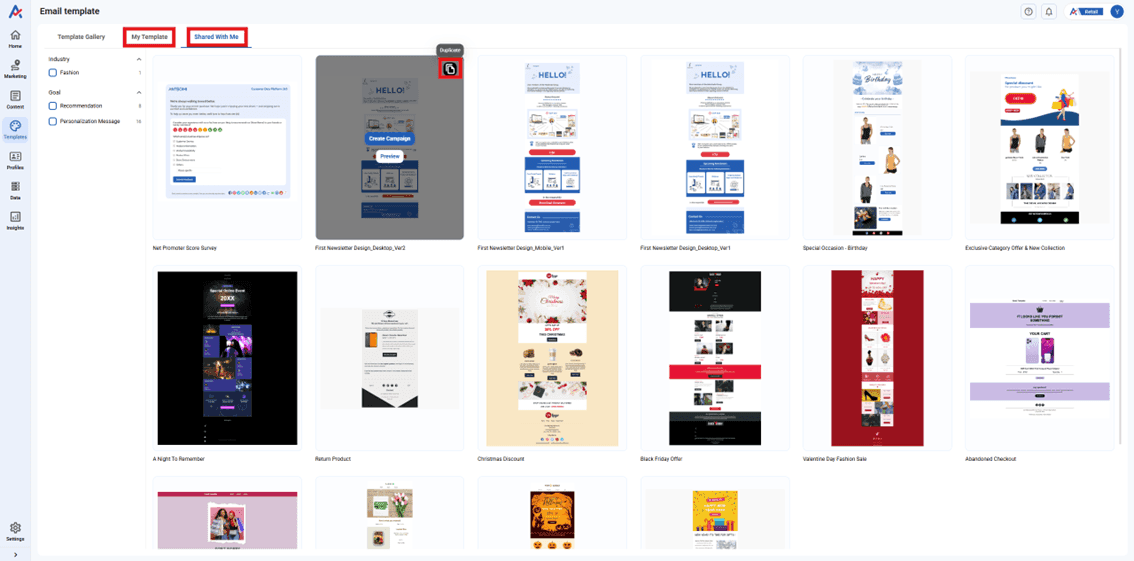
2️⃣ Create a new template either by duplicating an existing one from the "Template Gallery", or by duplicating a template located in "My Templates" or "Shared With Me". To do this, simply navigate to the desired template and click the "Duplicate" button.
Step 2: Insert and Configure Dynamic Content Blocks
🧩 Add Content Blocks: Within the email editor, add the necessary content blocks (e.g., text, image, button).
⚡ Enable Dynamic Content: To display a personalized list of abandoned items (which may be an array of products), select “Dynamic” on the image. Then click “Add dynamic content.”
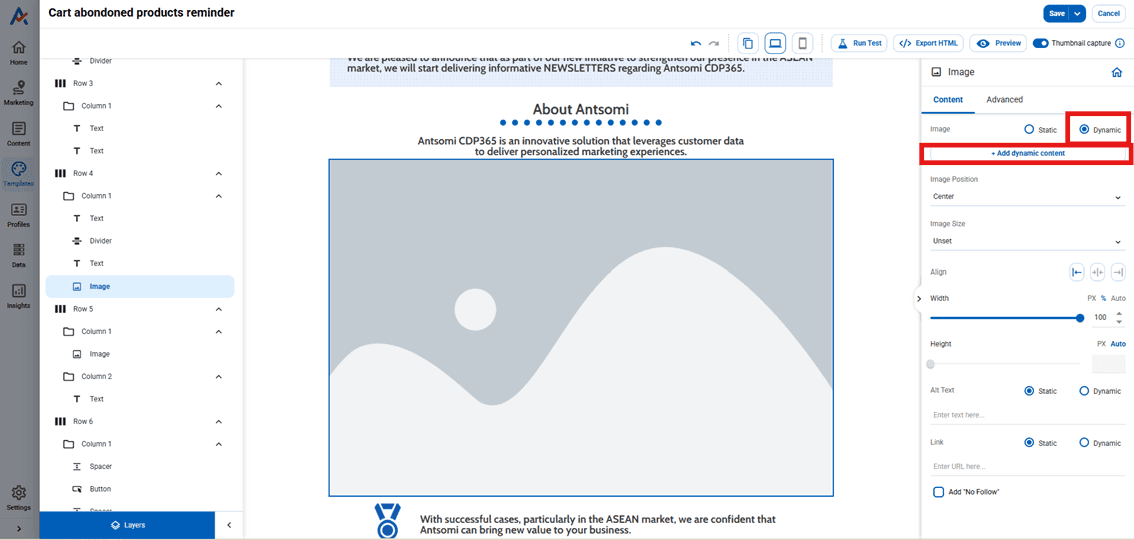
⚙️ Configure: Configure the Dynamic Content block to reference the event data. Map its source (Image URL) to the corresponding Event Attribute field for the product image. Click “Apply” to save the configuration.
📚Example of configuration
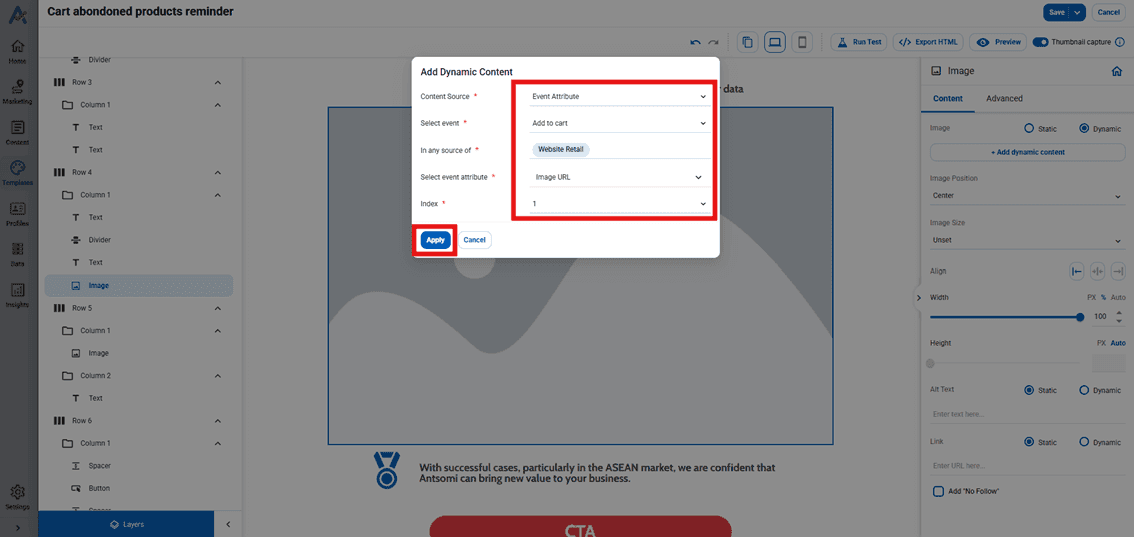
Note: The template functionality supports checking to exclude items that have been removed from the cart, indicating deep access to the cart event data.
Step 3: Save the Template
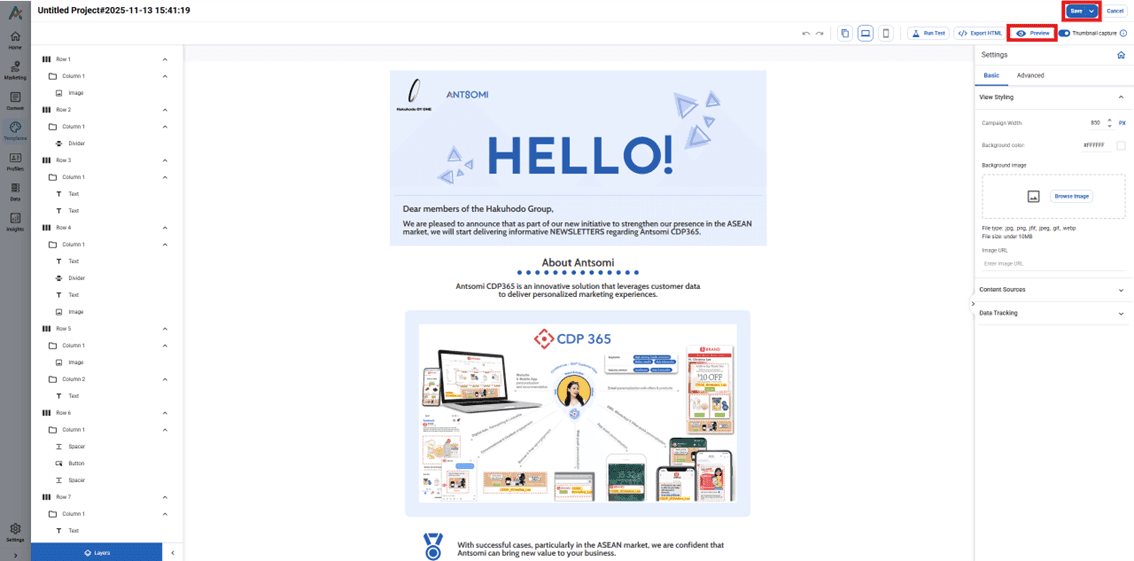
📱 Preview: Preview the email layout on both desktop and mobile devices.
💾 Save: Once editing is complete, click "Save" to save it as a new template or update an existing gallery template.
Related Manual
Learn the complete setup process for automated abandoned cart reminders in Antsomi CDP 365, from segment creation to journey configuration.
Read the Manual